
Collections
The Collections tab (Ctrl+3) holds what you reuse across sessions: Automations (with their templates), Prompts, Skills and MCP servers. The main button in the toolbar creates a new item of the section you are in.
Automations
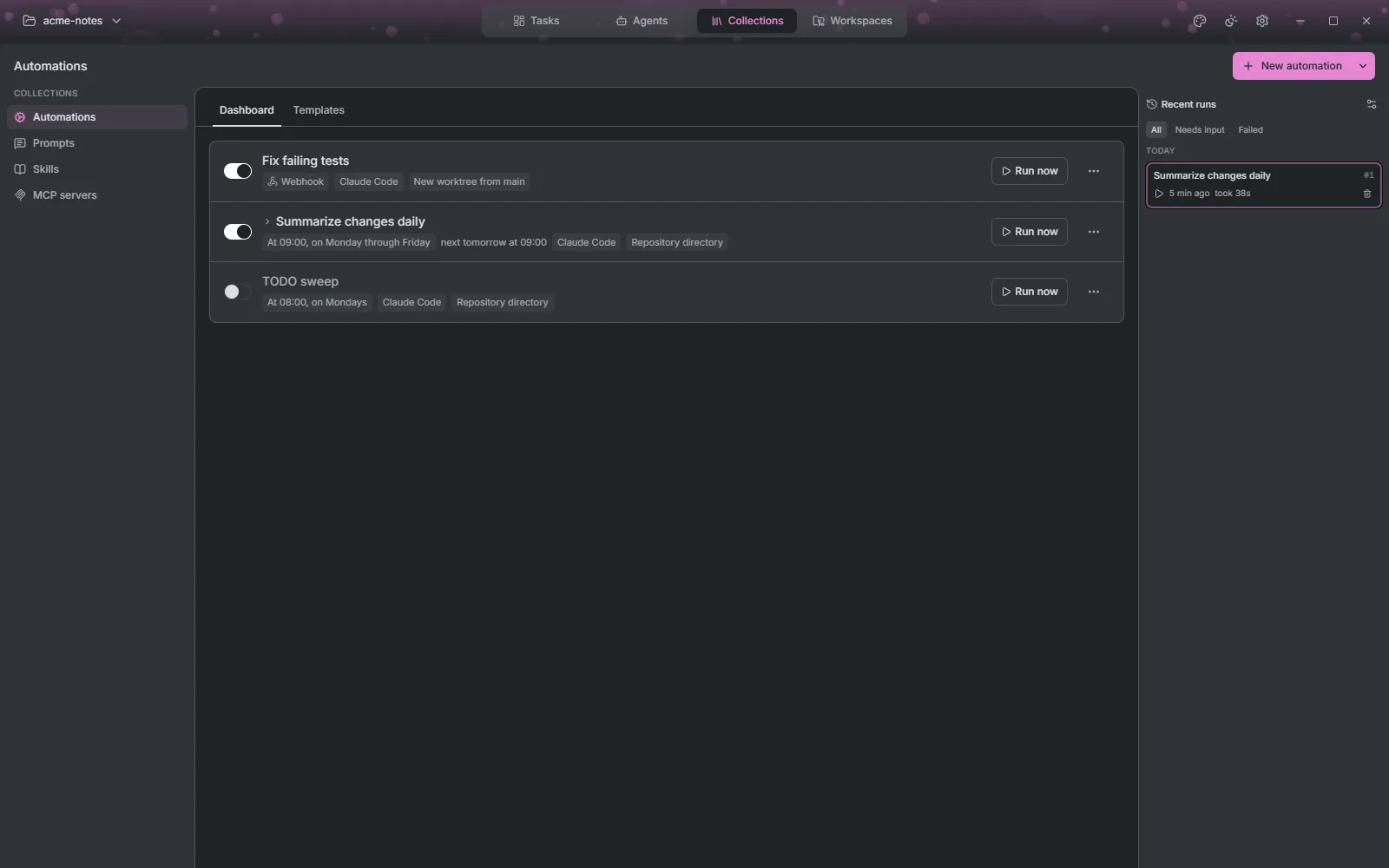
An automation is a prompt, an agent and a workspace that run without you starting them: on a schedule, when a webhook is called (a push, a failed build, an alert), or when you press Run now. They run in the background server, so a schedule fires even when no Maestro window has the project open.
The dashboard
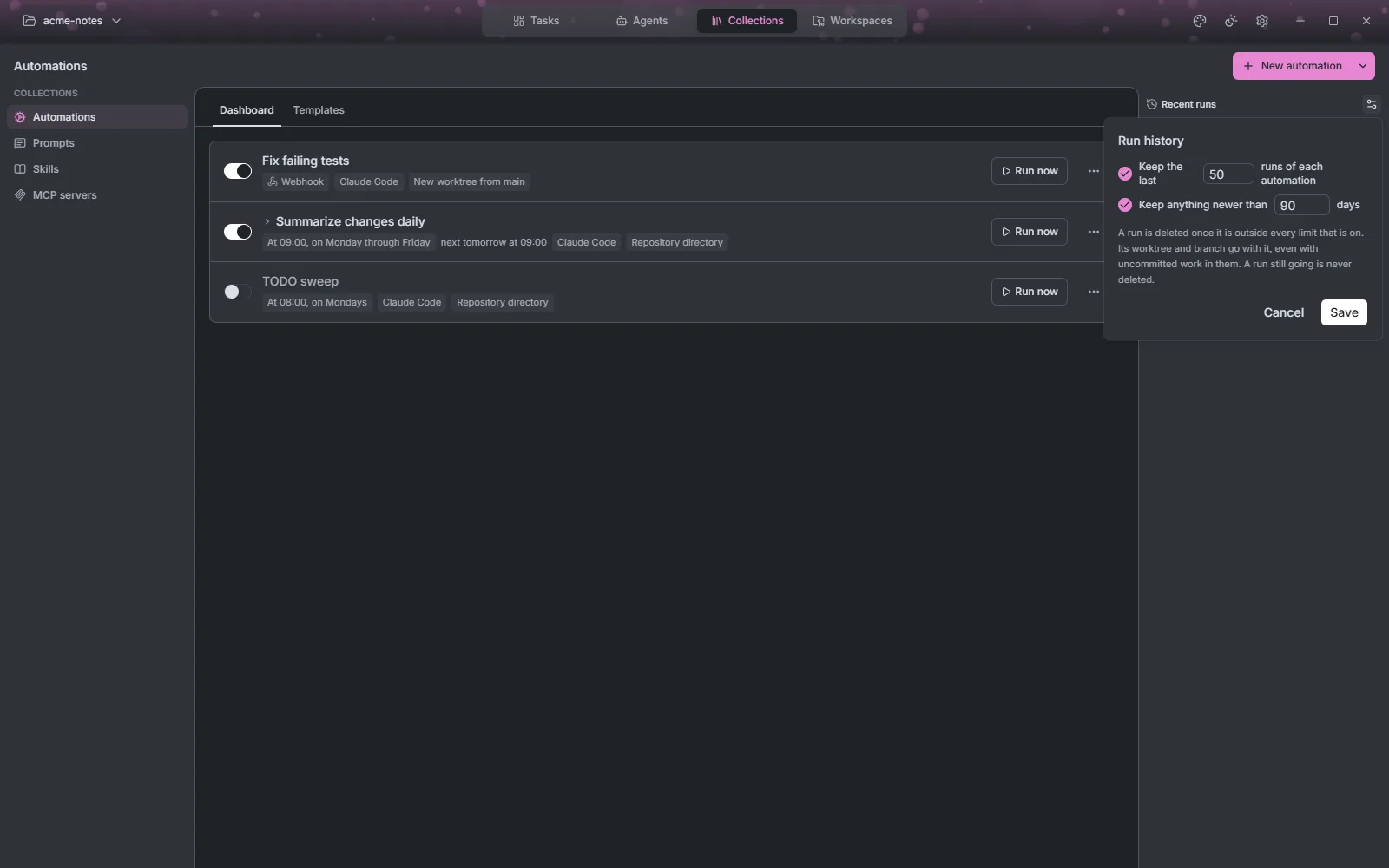
Each automation is a row with a switch that pauses or resumes its trigger. Run now always works, paused or not. The row shows the schedule and the next run, the agent, the model and the workspace, and while a run is going, Join to watch it, Answer when it is waiting on you, and Stop. Click the row to see its last runs; the count beside the chevron says how many there are. The ⋯ menu holds Edit, Save as template and Delete.
Creating one
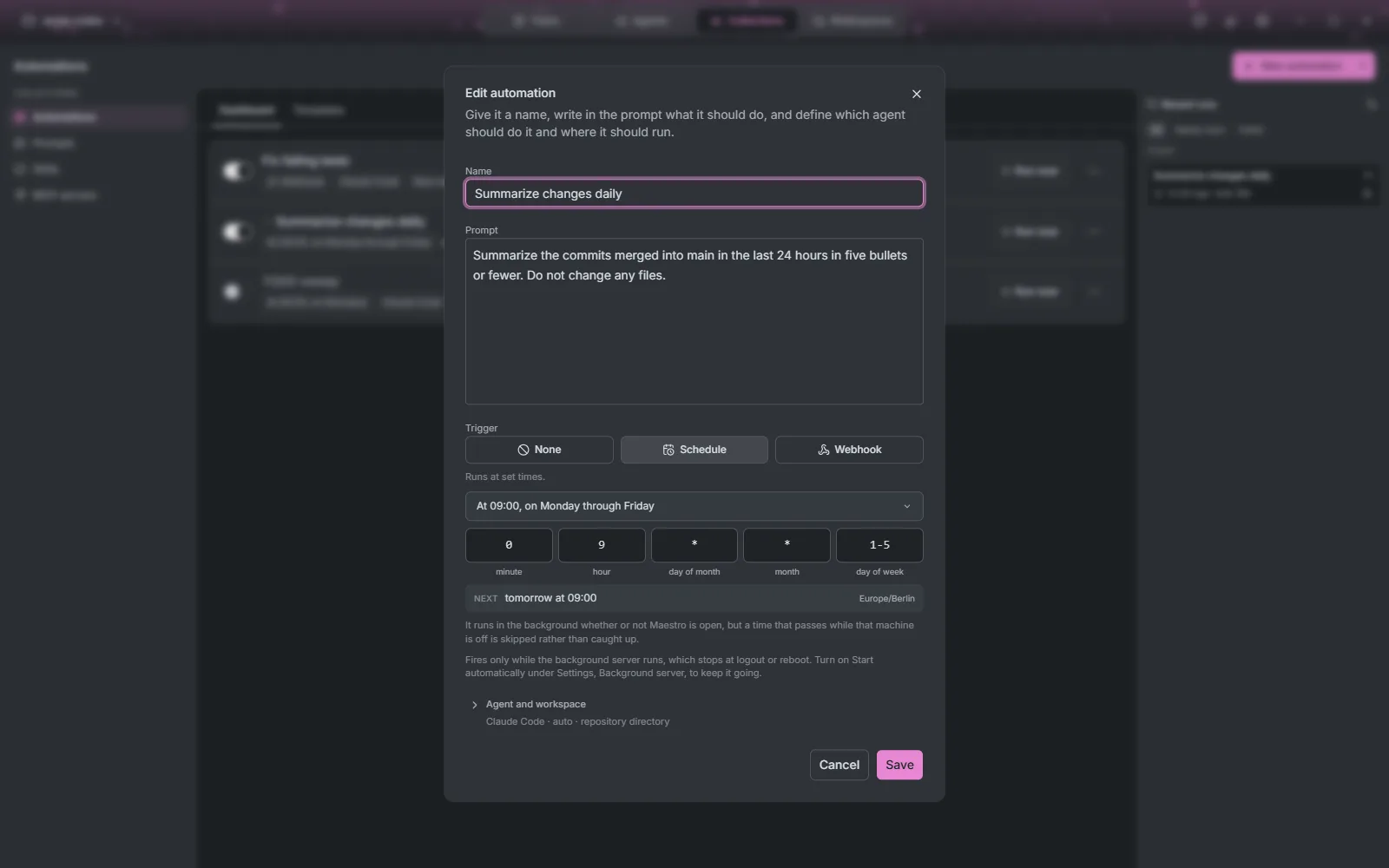
New automation opens the editor:
- Name and Prompt: what the agent should do, and what it should leave behind.
- Trigger, one of:
- None: it only runs when you press Run now.
- Schedule: a cron expression, with a plain-English summary, a menu of common schedules, and a preview of the next runs. For a remote connection, choose whether the time is read in this computer's zone or the remote machine's. Runs missed while the machine was off are skipped, not caught up.
- Webhook: runs when a service calls its URL. See below.
- Agent and workspace: the agent, model, permission mode and effort, and where it works. With Create new worktree, each run gets its own worktree and branch. It is removed when the run ends with nothing to lose, and kept, with a note saying why, when there is.
Webhooks
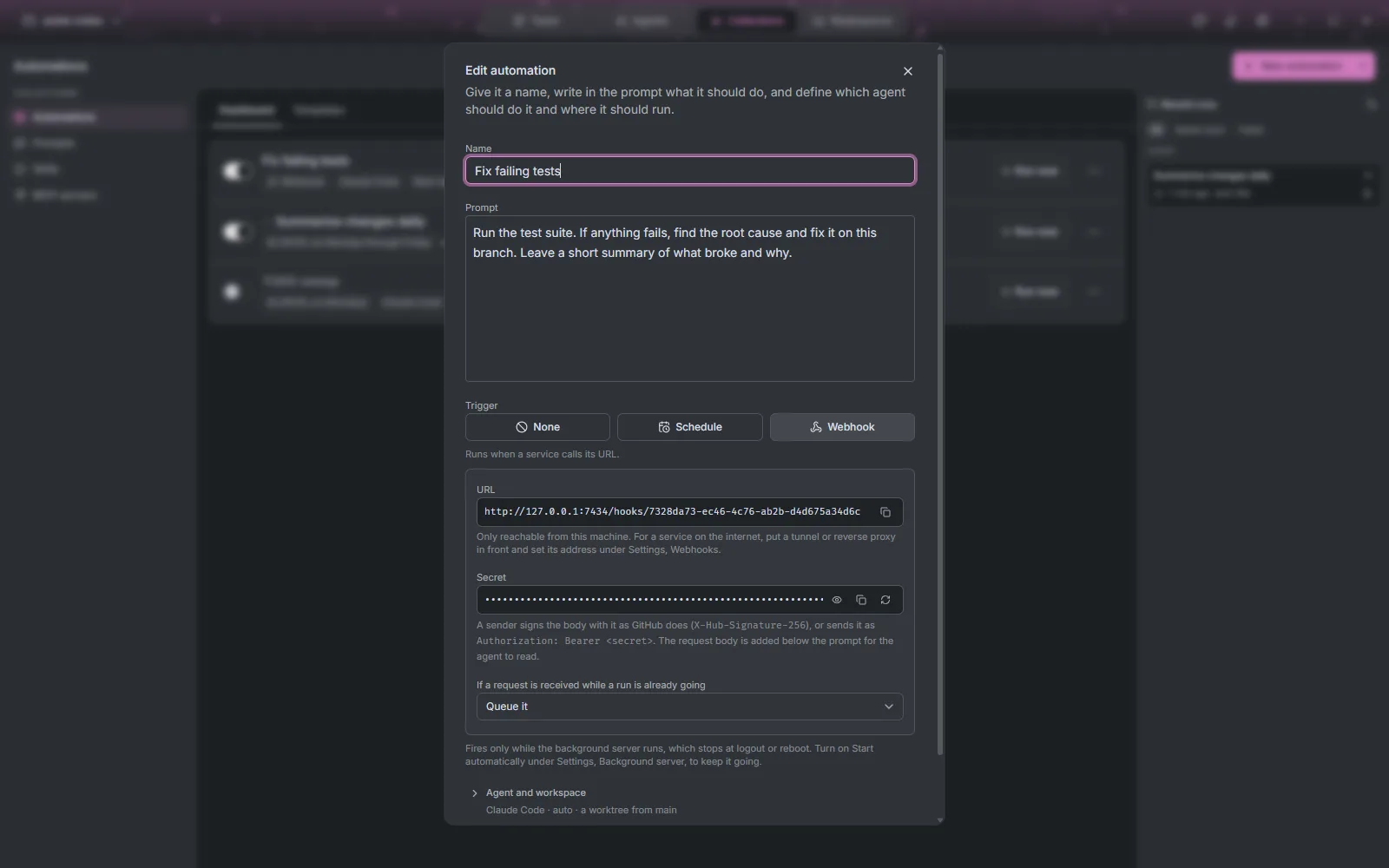
After saving, a webhook automation shows its URL and a secret. The caller signs the body GitHub-style (X-Hub-Signature-256) or sends Authorization: Bearer <secret>, and the request body is added below the prompt. Choose what happens when a request arrives while a run is going: refuse it (the sender gets 409 Conflict), queue it (up to 10 wait), or run it alongside.
The webhook listens on this machine only (127.0.0.1:7433) until you change it under Settings, Webhooks, where you can also set the public URL of a tunnel or reverse proxy. Maestro serves no TLS and runs no tunnel.
Run history
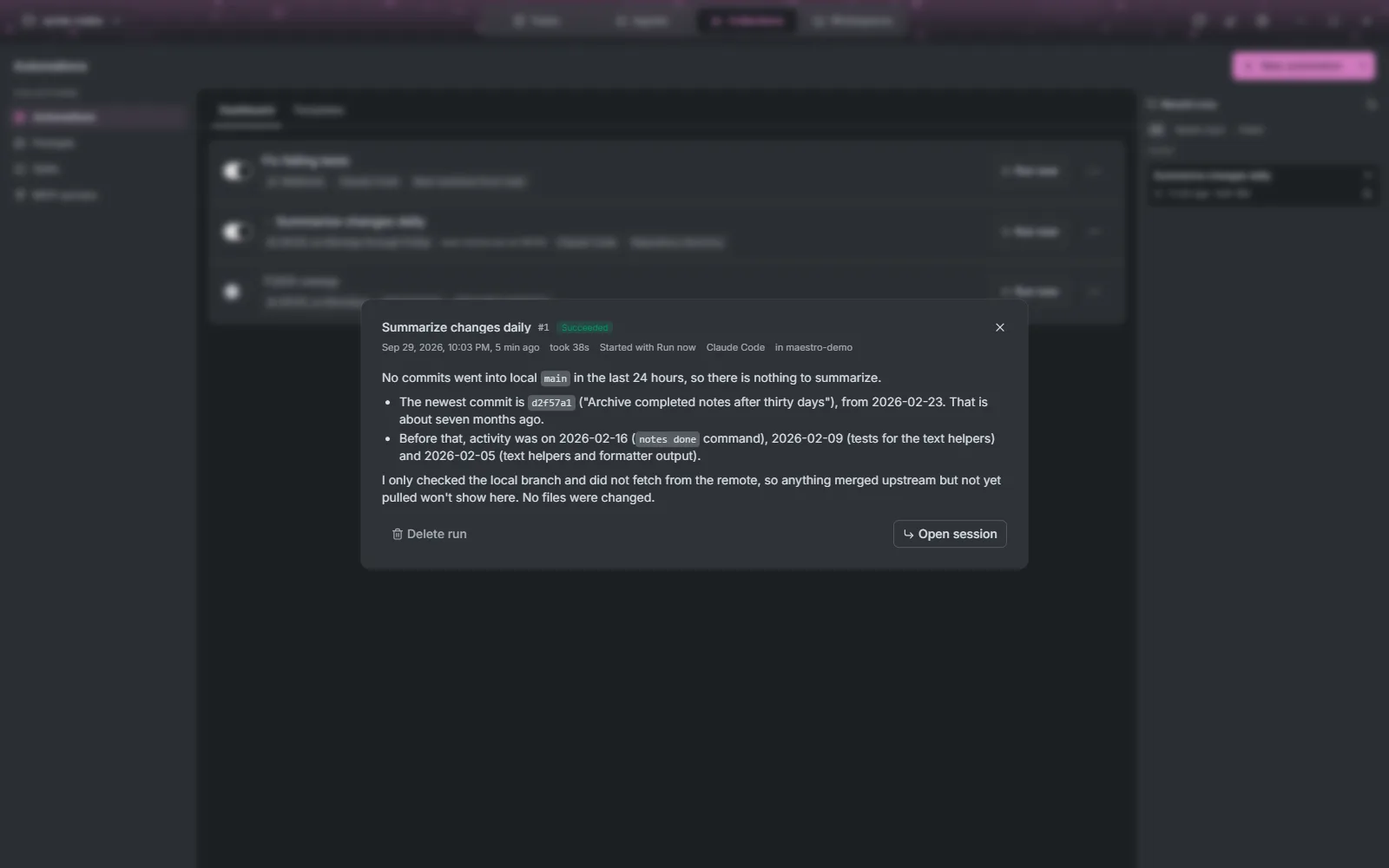
Recent runs lists every run, filtered to Needs input or Failed when you want. Clicking a finished run shows what the agent reported, or why it failed, with Open session to pick the conversation up. Deleting a run removes its worktree and branch too.
Run history settings decide what is kept: the last N runs of each automation, and anything newer than N days. Older runs are deleted with their worktrees. A run that is still going is never deleted.
Templates
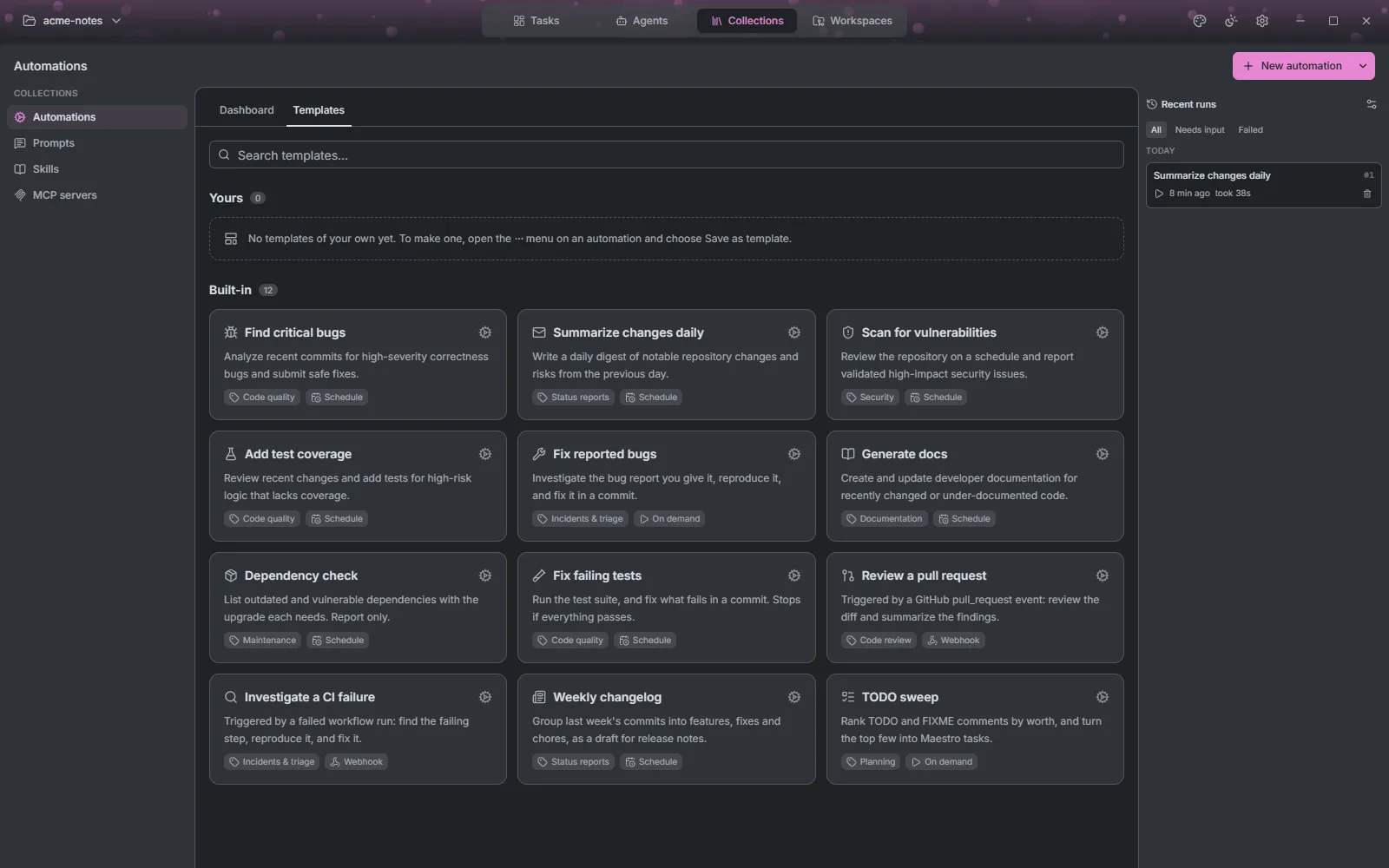
The Templates tab starts an automation from a ready-made prompt. Twelve are built in, such as Find critical bugs, Summarize changes daily, Scan for vulnerabilities, Review a pull request and Weekly changelog. Save your own from any automation with Save as template. A template keeps the name, prompt and trigger; the agent and workspace are chosen each time, since they belong to the project.
Prompts
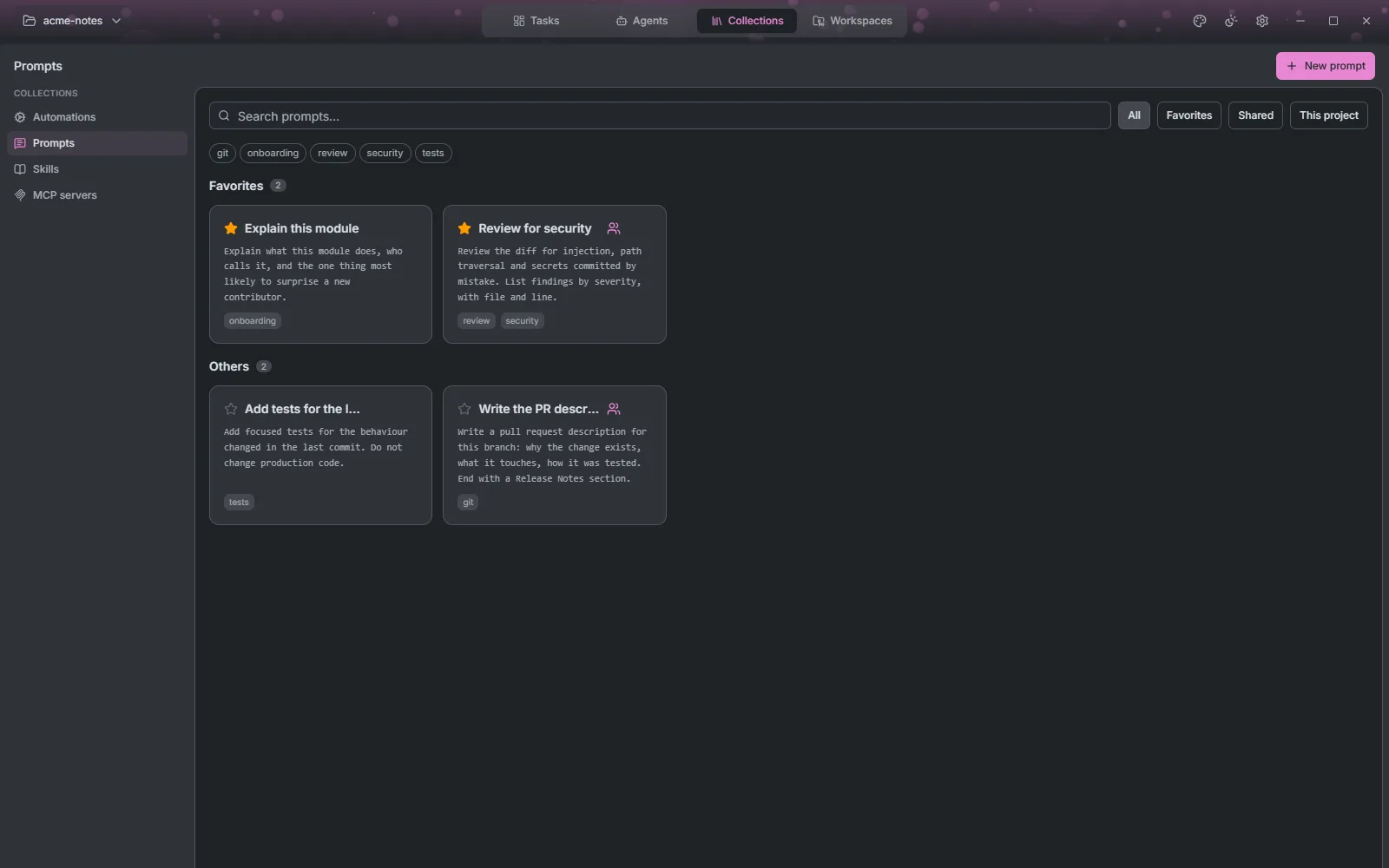
A prompt is text you hand to agents again and again. Click a card to copy it. Star it to keep it at the top, and share it to list it in every project rather than this one alone; deleting a shared prompt removes it everywhere. Filter by Favorites, Shared, This project or by tag.
Skills
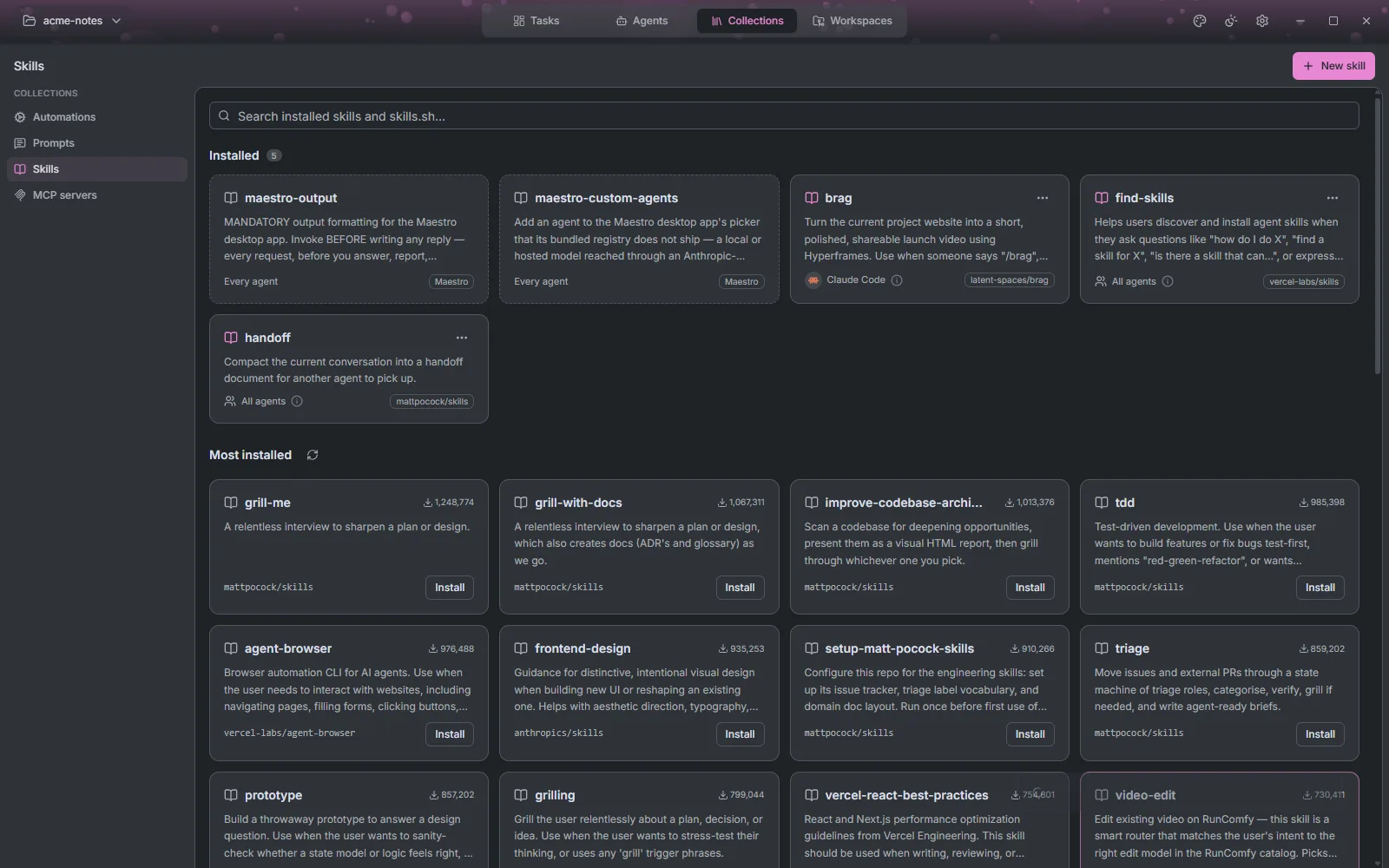
Skills extend what an agent knows how to do. The Installed section lists the skills Maestro manages on this connection, In this project those already in the project's agent folders, and Most installed the skills.sh catalog, searchable from the same box.
Install asks which agents should get the skill: every agent, including ones installed later, or a chosen few. Click an installed skill's agent summary to change that. Several agents read the same ~/.agents/skills folder, so turning a skill off for one can turn it off for its neighbours, and Maestro warns when it does.
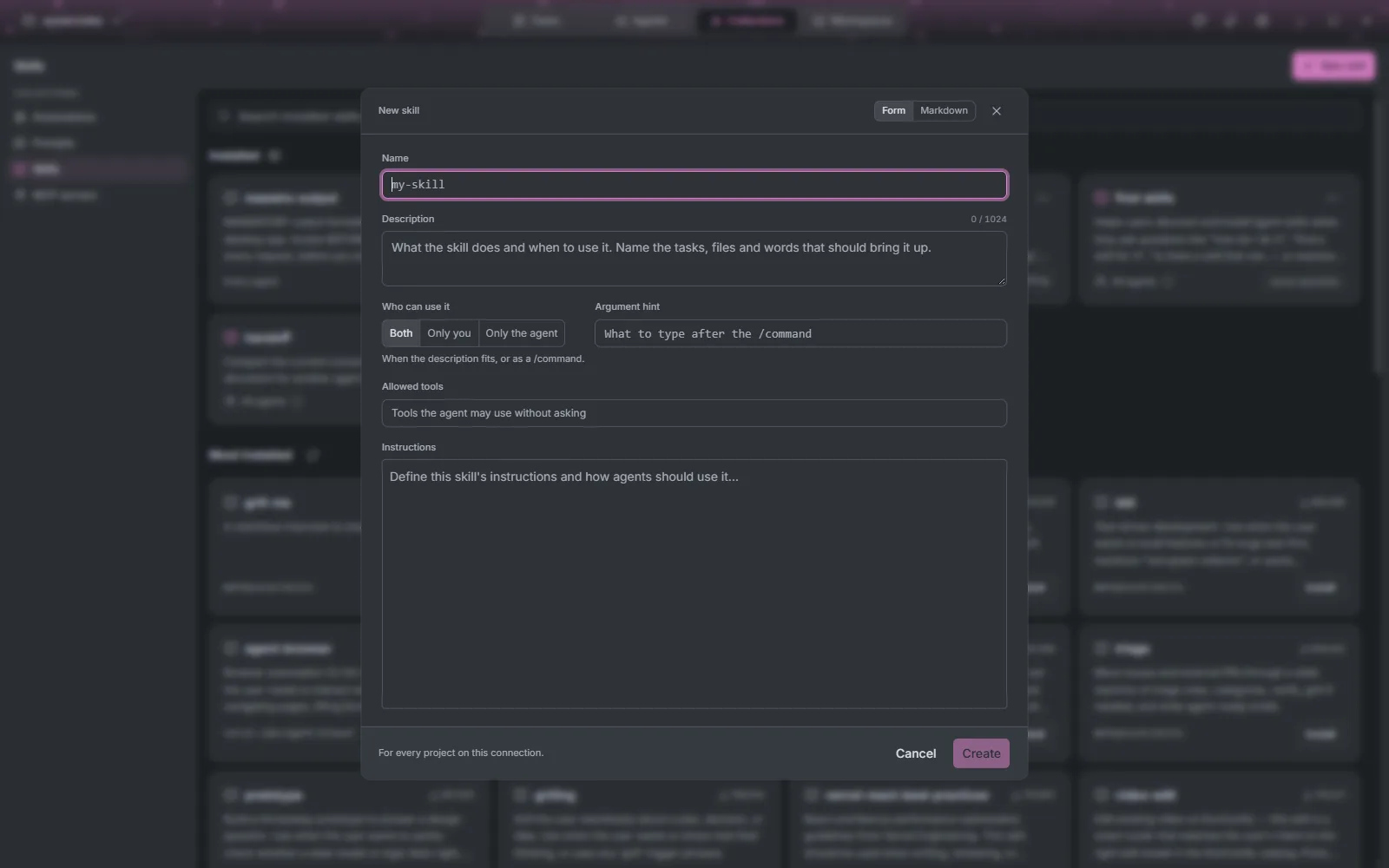
New skill writes your own, in a form or as raw SKILL.md: name, description, who can invoke it (the agent, you through its /command, or both), allowed tools and instructions.
MCP servers
MCP servers give agents extra tools. The Installed section always includes Maestro's own maestro server, which every session gets. The Catalog is the GitHub MCP Registry.
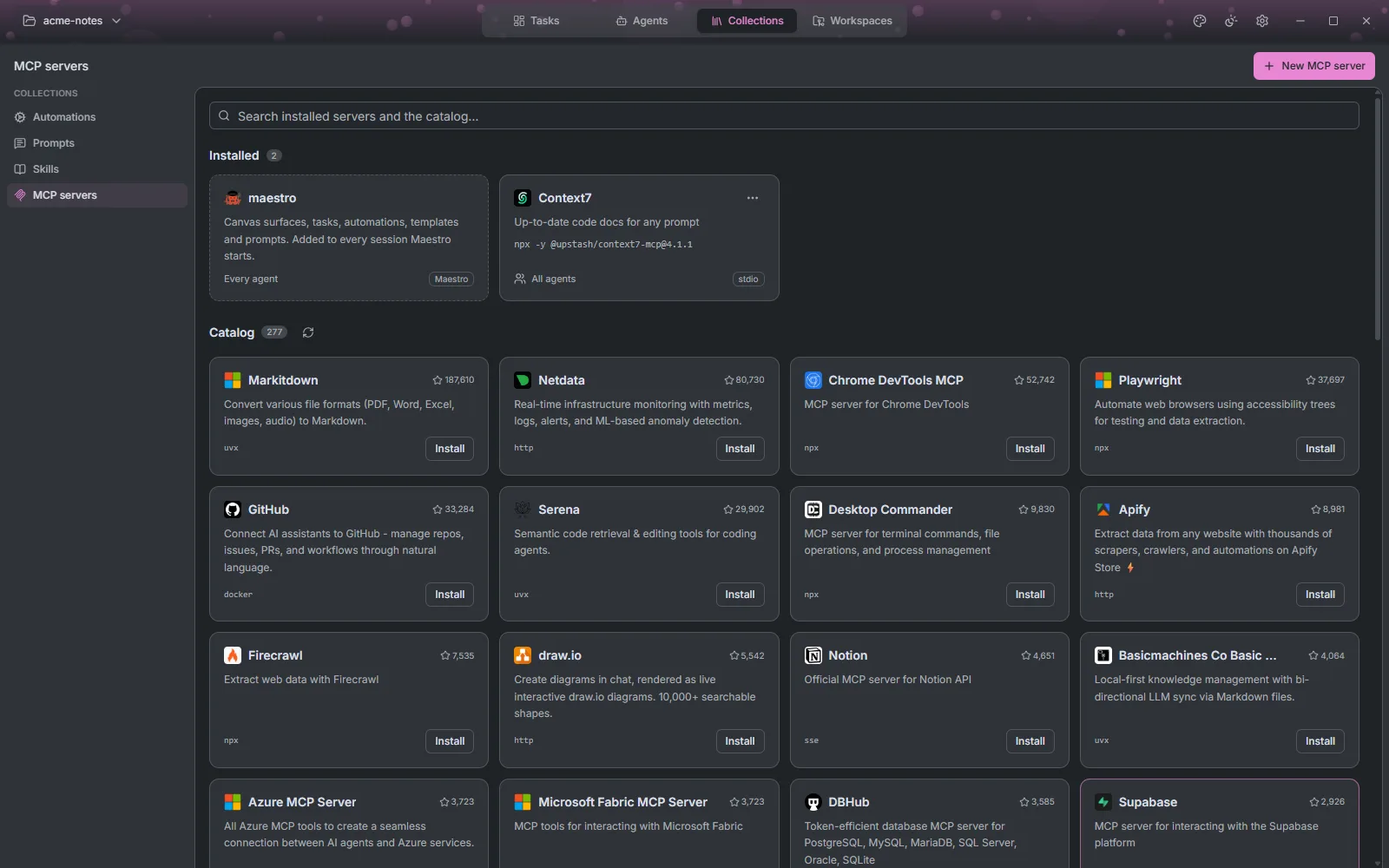
Install, or New MCP server, opens the editor, as a form or as JSON (you can paste an mcpServers block):
- STDIO: a command and its environment variables.
- SSE or Streamable HTTP: a URL and authentication, one of none, OAuth (with Sign in), a bearer token or custom headers. Tokens are kept in your keychain.
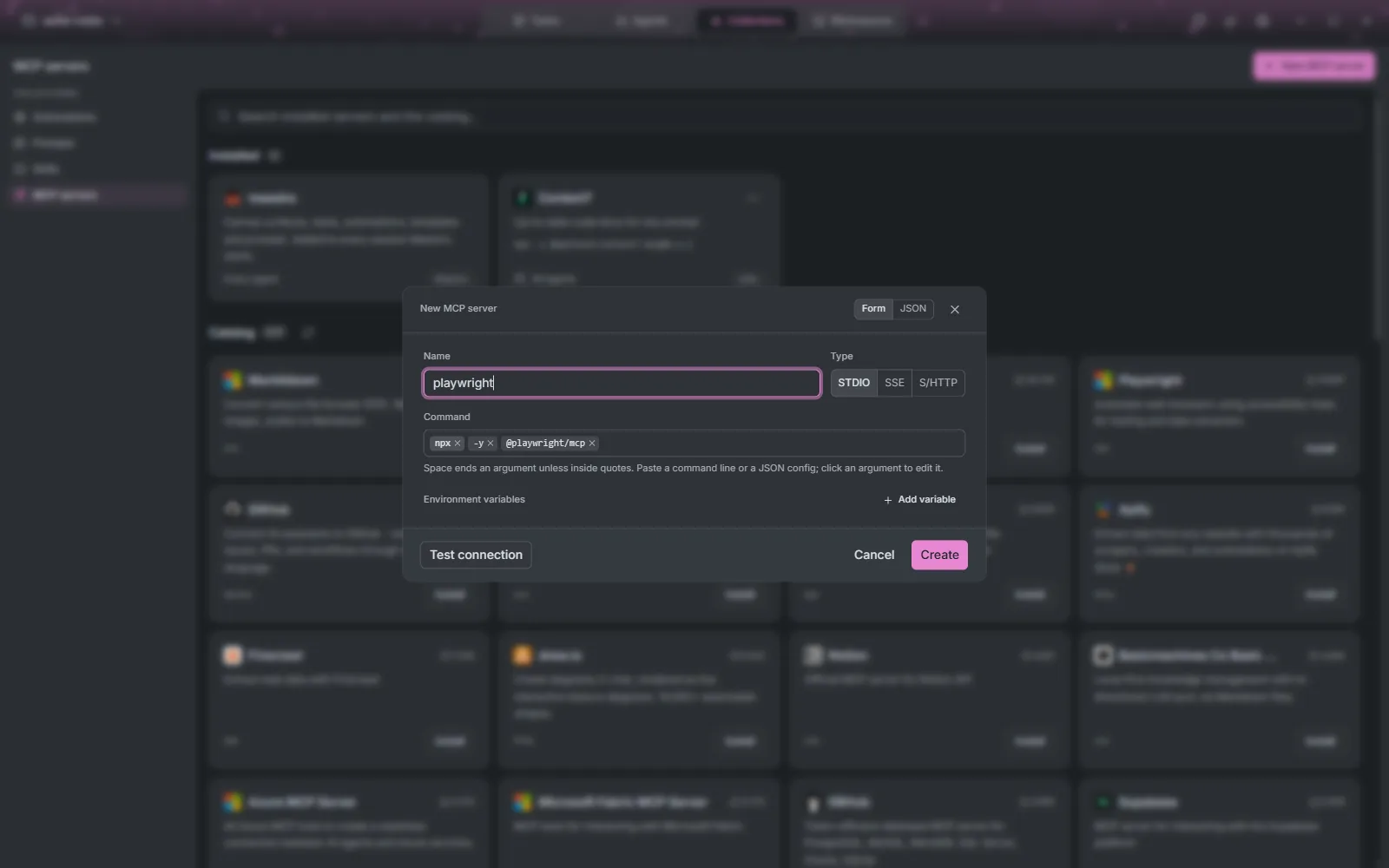
Test connection checks the server from the machine the agents run on. Like skills, each server goes to the agents you choose, and a server in the project's own .mcp.json is listed but left alone.