Settings
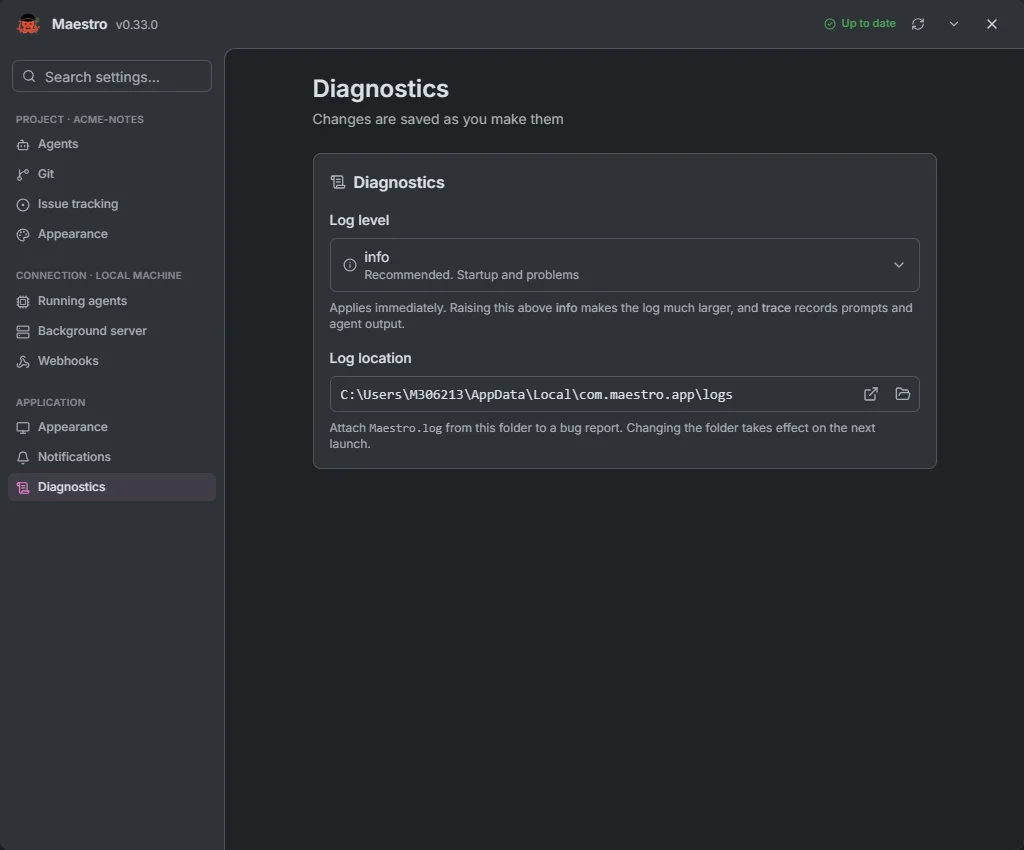
Settings open as a dialog over any tab, from the cog in the header or with Ctrl+,. Search settings… finds a control by name. Everything saves as you change it.
The top strip shows the version, Check for updates, and Install when an update is ready (installing stops running agent sessions). Its menu turns Auto-update on or off.
Pages come in three groups. Project pages appear only with a project open. On Home, the cog opens the Application pages, and Settings in a connection's ⋯ menu opens that connection's pages too.
Project
Agents
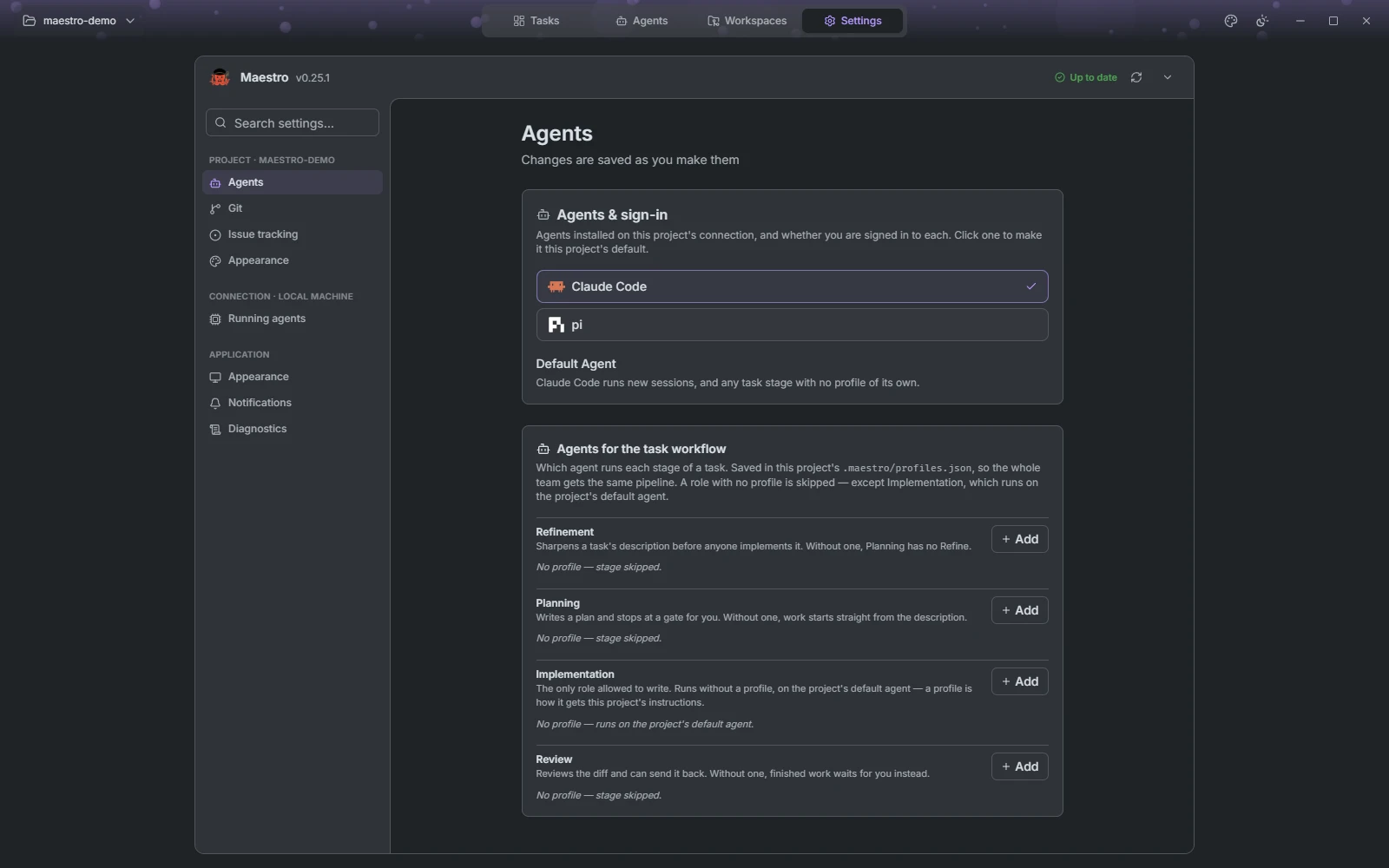
Agents & sign-in lists the agents installed on the project's connection. Click one to make it the project's default, which runs new sessions and any task stage with no profile of its own. Logout signs you out of an agent.
Agents for the task workflow sets up the pipeline: one block per stage, Refinement, Planning, Implementation and Review. Add creates a profile for a stage, with its own agent, model, permission mode, effort and instructions for the role. A stage with no profile is skipped, except Implementation, which falls back to the default agent. Profiles are saved in .maestro/profiles.json, so a team sharing the repository shares the pipeline.
Git
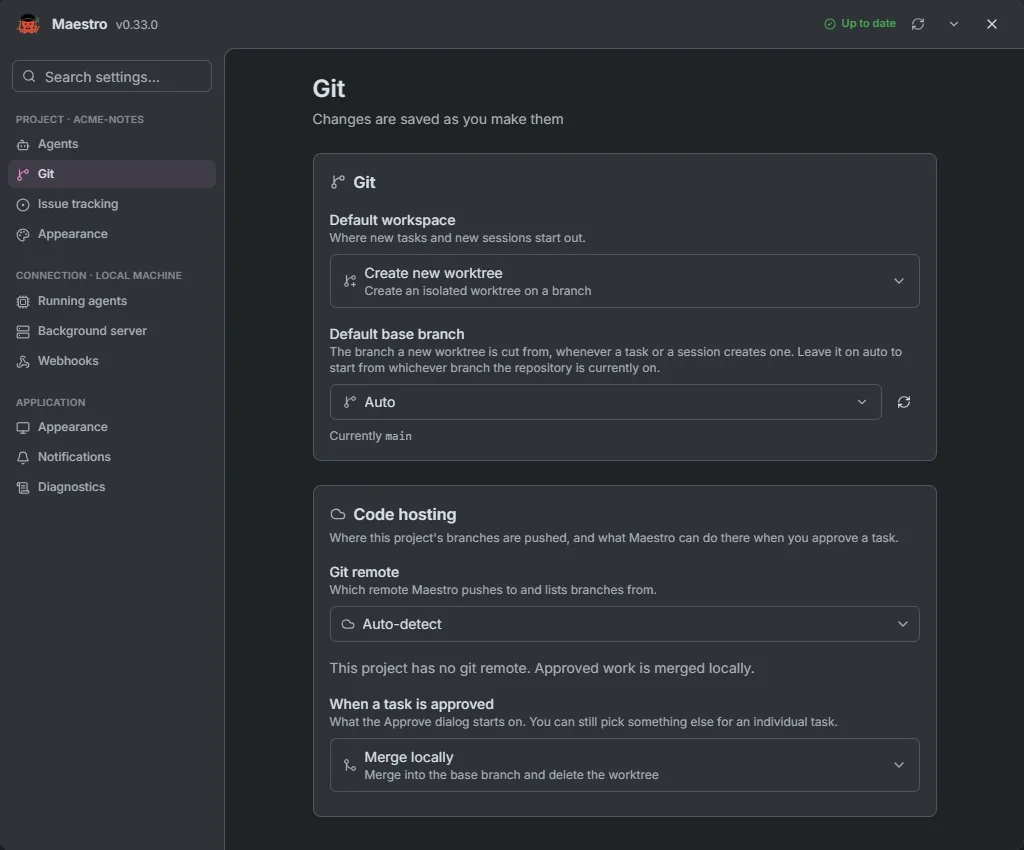
- Default workspace: where new tasks and new sessions start out.
- Default base branch: Auto uses the branch the repository is on.
- Git remote: the remote Maestro pushes to and lists branches from, with the code host's status and Connect when an integration is missing.
- When a task is approved: the default choice in the Approve dialog, one of Merge locally, Open a pull request or Push only.
Issue tracking
Pick the connected provider to import issues from, with its project fields, such as the repository for GitHub or the team for Linear. When the git remote points at a provider you have not connected, Maestro offers to connect it. Remove clears the setup.
Appearance
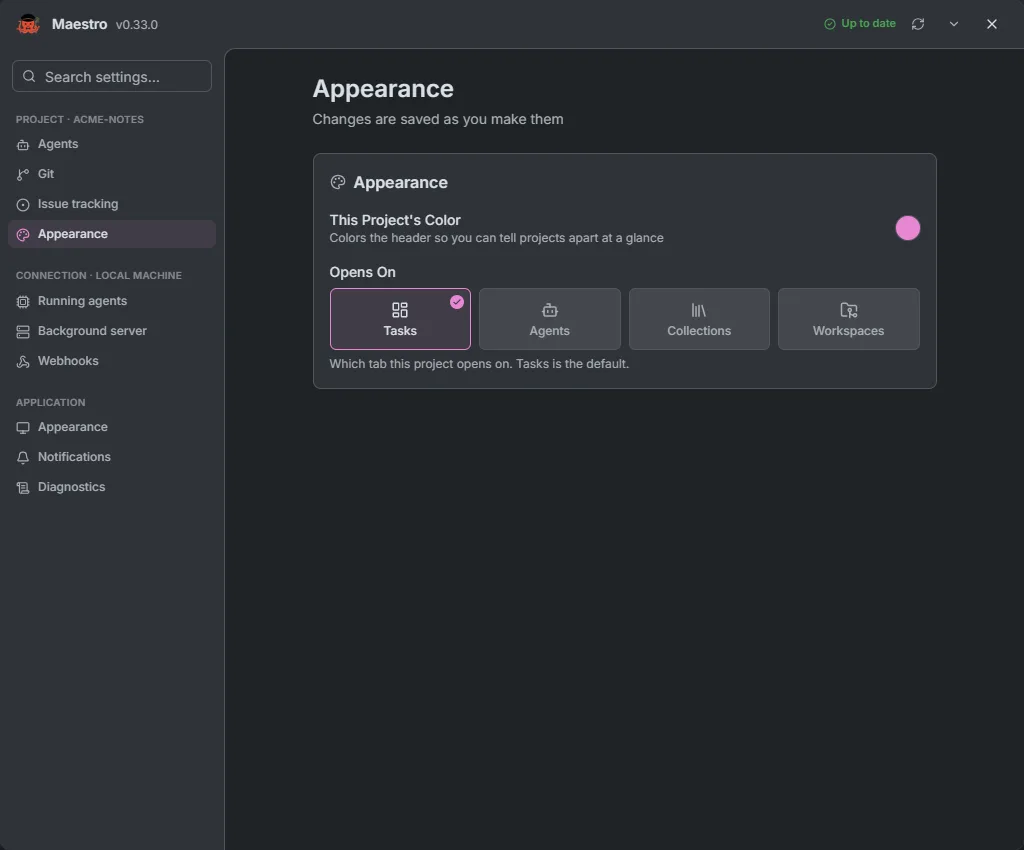
The project's own header colour, and the tab it Opens On: Tasks, Agents, Collections or Workspaces.
Connection
These pages apply to the machine the project lives on, and to every project on it.
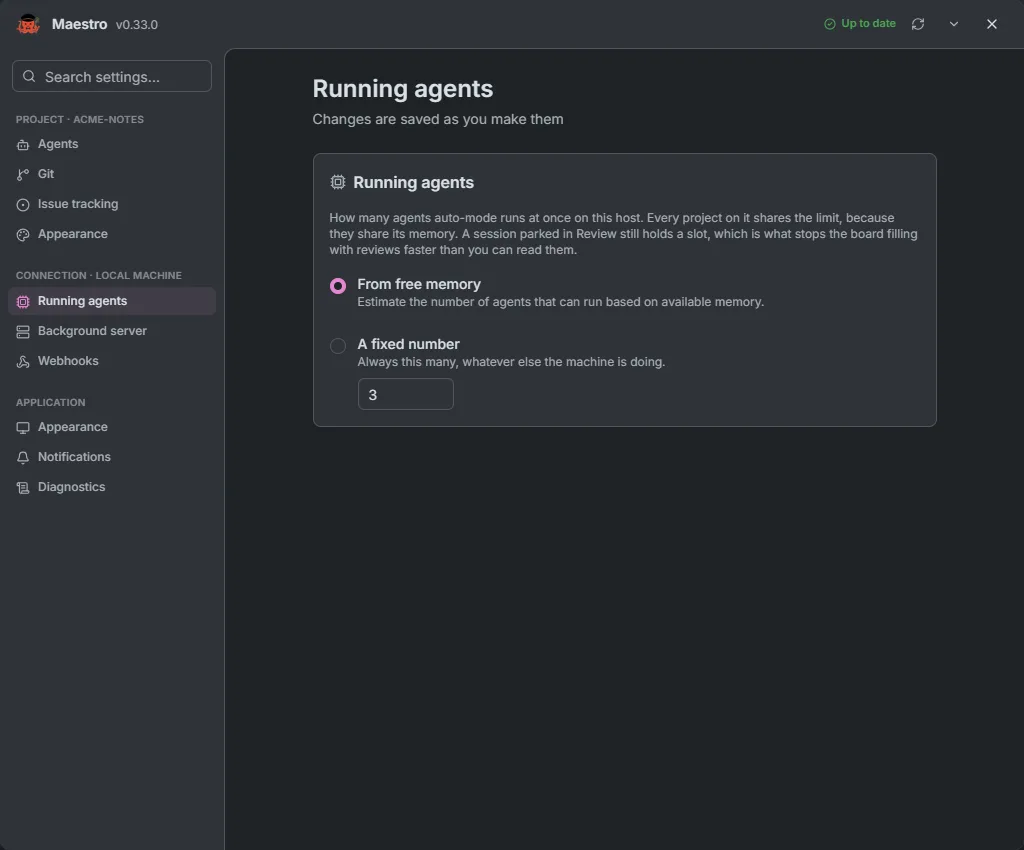
Running agents
How many agents Auto mode runs at once on this machine: estimated From free memory, or A fixed number from 0 to 64.
Background server
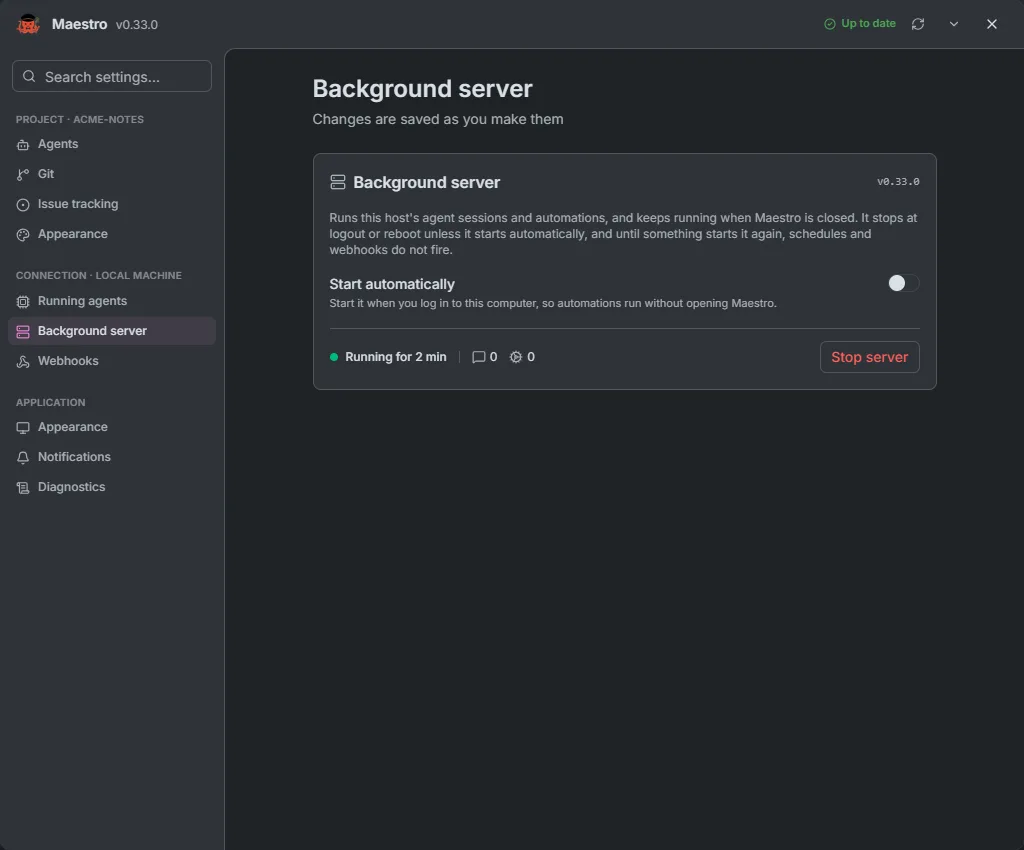
The server that runs agent sessions and automations, and keeps running after Maestro closes. Start automatically starts it at login (on a Linux host, at boot through systemd or cron), so schedules keep firing after a restart without opening Maestro. The page counts live sessions and automation runs. Stop server ends them all and takes you back to Home at once, where the connection reads Server stopped when the stop is done. Home's connection menu can also start, stop and restart the server.
Webhooks
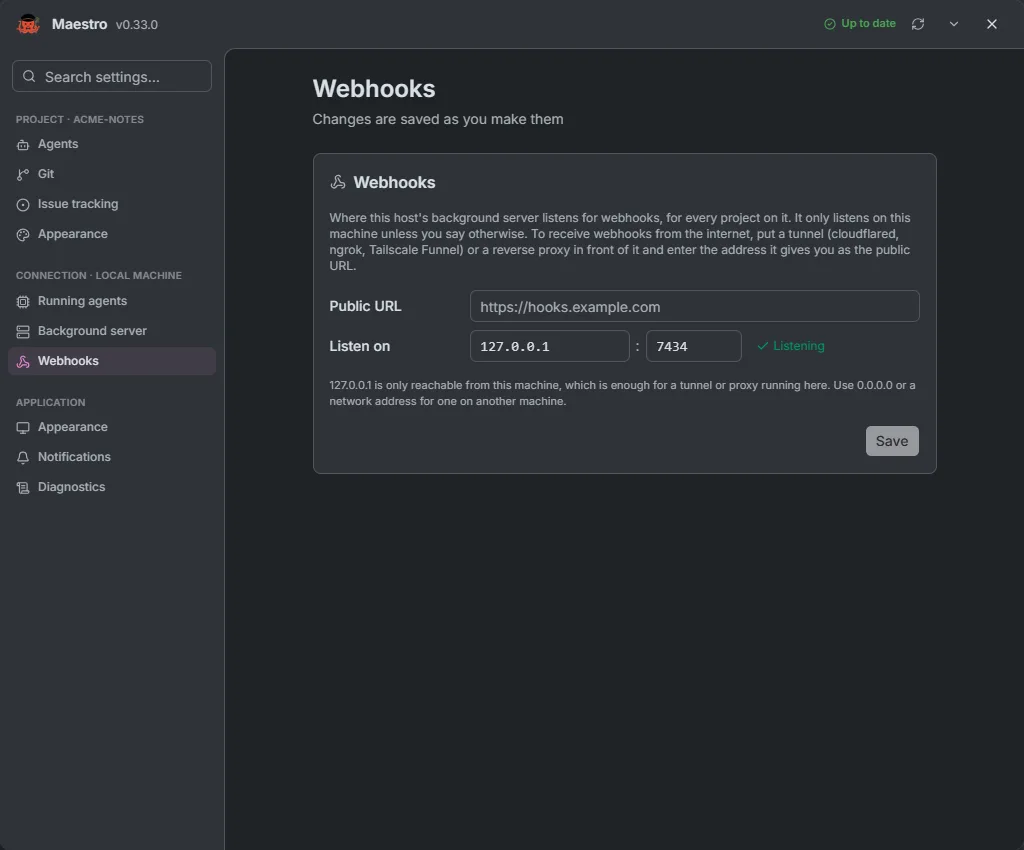
Where webhook automations listen: the address and port (default 127.0.0.1:7433), and the Public URL of a tunnel or reverse proxy that webhook URLs are built from. Maestro warns before you bind to an address other machines can reach.
Application
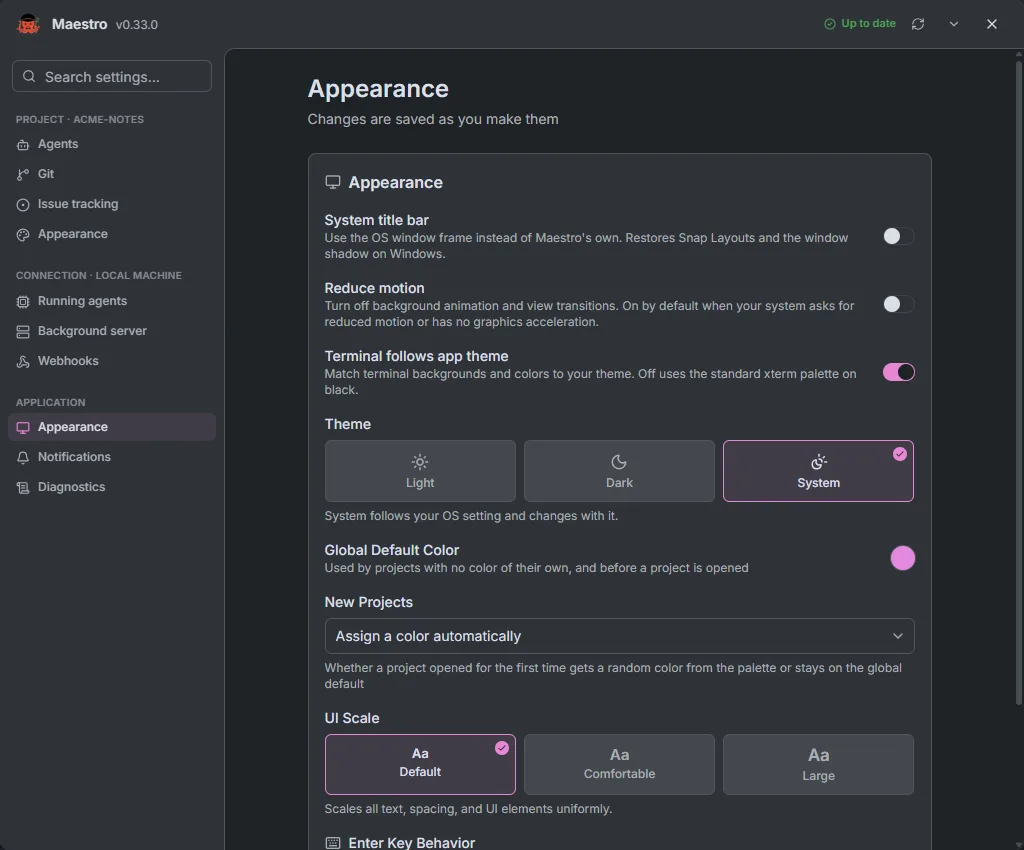
Appearance
Theme (Light, Dark or System), the global accent colour and whether new projects get one of their own, UI scale (100%, 115% or 130%), reduced motion, whether the terminal follows the app theme, the system title bar (not on macOS), and whether Enter sends a message or adds a new line.
Notifications
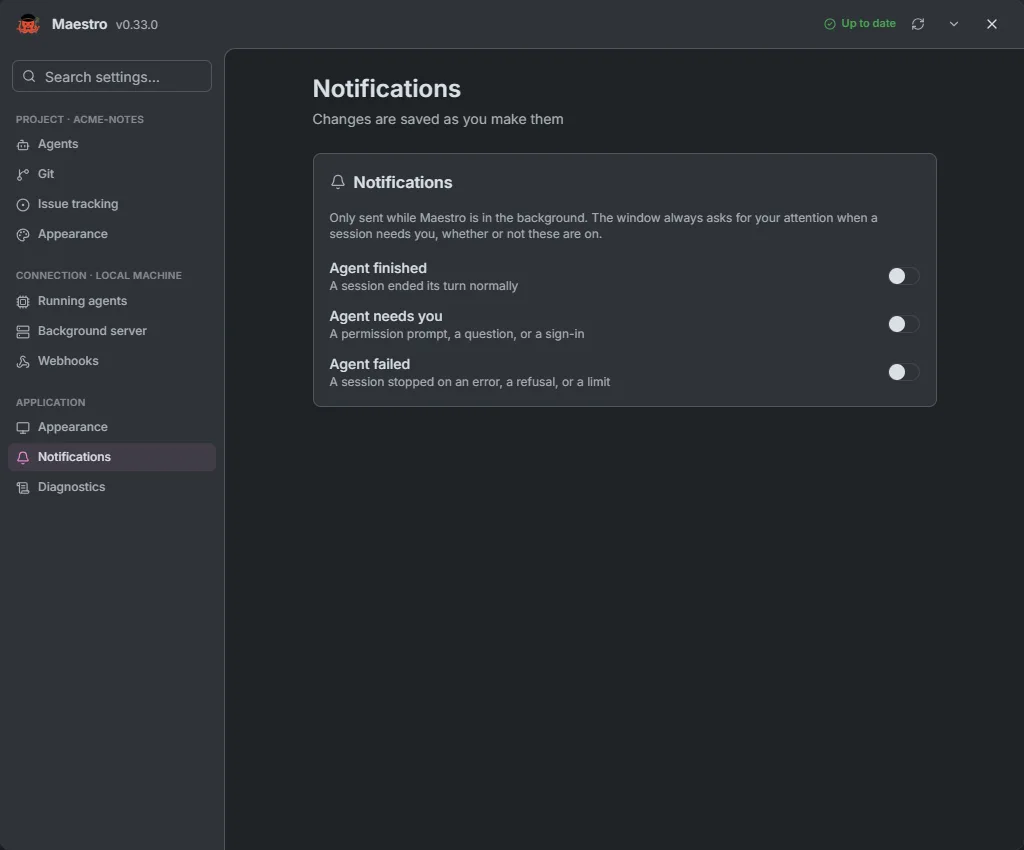
Desktop notifications when an agent finishes, needs you, or fails. They are only sent while Maestro is in the background.
Diagnostics
The log level, from error to trace, and where the log is written: open the folder, change it, or reset it. A new folder takes effect at the next launch. Leave the level at info unless you are chasing a problem: trace records prompts and agent output.